Selecting, Deleting, Renaming
Now we’ll start learning steps for cleaning and wrangling data. “Cleaning” data generally refers to fixing incorrect data, removing missing data, and standardizing names. “Wrangling” data typically refers to transforming data so that it is ready for analysis. Both of these steps often end up being 90% of working on a project. As you’ll see later, once your data is in the right format, you can run complex analyses with a single line of code. However, getting it into that format can take some time and patience.
The {tidyverse} Package
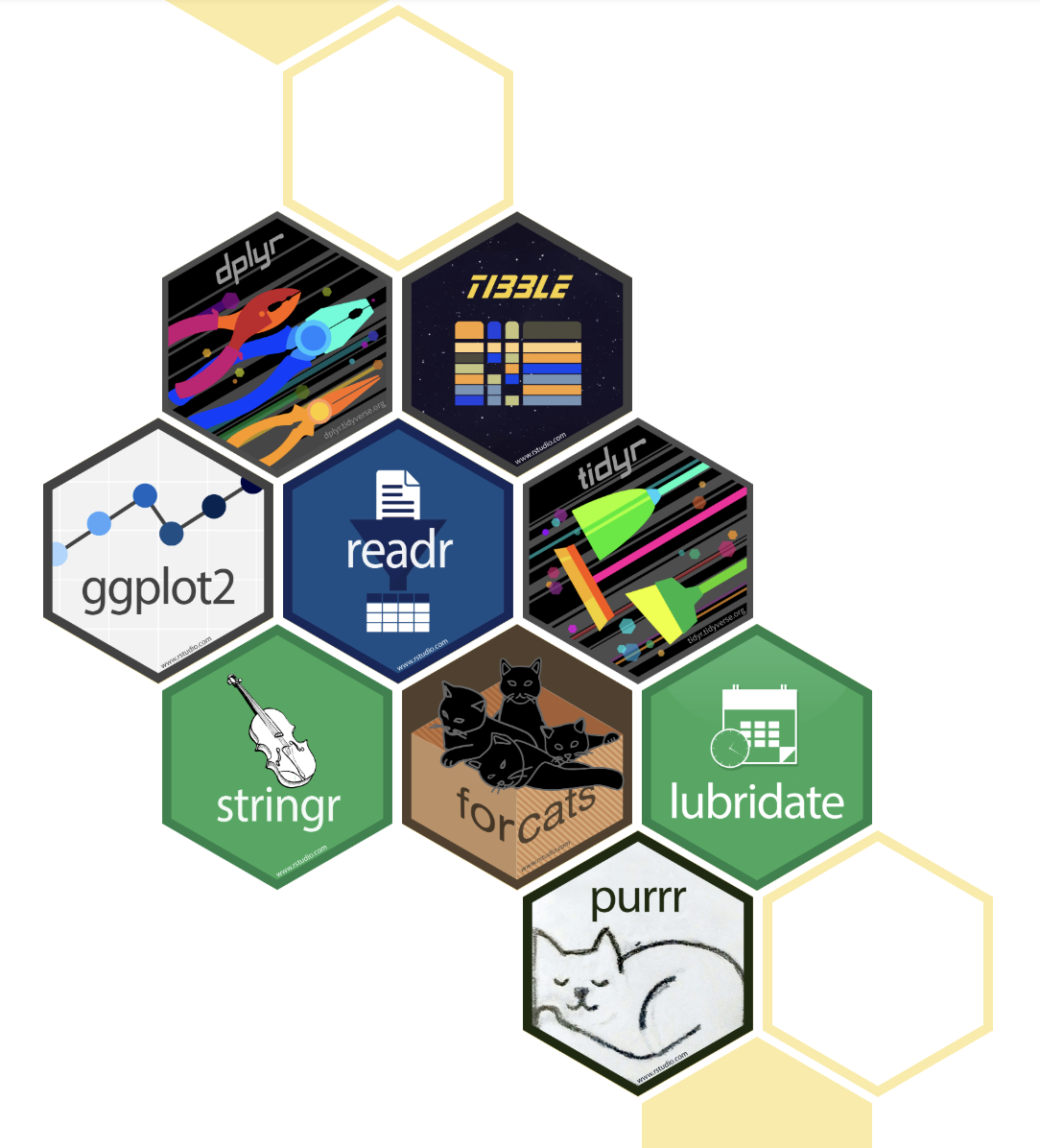
{tidyverse} is a library you can load that is actually a collection of many R packages. This group of packages is designed to make data analysis easier and more intuitive. {tidyverse} includes tools for importing, cleaning, and transforming data to make it “tidy”. It also includes other packages, including {ggplot2}, which we will use for graphing.

The Pipe: |> or %>%
A pipe in R is an operator that allows you to pass the output of one function directly into the next function without needing intermediate variables. With a pipe we don’t have to create new variables, we can take the output of the first line and pass it directly to a new function. A pipe will always go at the end of a line of code and signals to R that it should immediately go to the next line. When we do this we say we are “piping”.
The symbol for piping used to be
%>%but has been updated to be|>. Depending on whose code you’re looking at, you could see either one. We will use|>, but both work the exact same way.
Here’s an example of the pipe in action. Don’t worry yet about what this code is doing, we’ll go through it, this is just to show you that the pipe allows you to do many things by passing the output of each line to the next function.
When we run all of that we see just three columns of a single row of output values.
The |> should always be the last thing on the line and any new functions should start on the next line. You should think of the pipe like saying “and” in a conversation; you add it to each command but you don’t want to say “and” to end a sentence, so the last line of code should not have a dangling pipe at the end or you will get an error.
Selecting and Deleting Columns
If you want to select several columns or delete columns you will use the command select().
What the select() function does is essentially subset our data by column name. You will add within the () the names of the columns you want to see and they will appear in the order you list, so this is also helpful if you want to rearrange the data.
From running colnames() we saw there are 8 columns of various types of data. Let’s say we just wanted to look at the species and sex column, we would code the following:
Your output should be a two column dataset with only species and sex. They are in the same order as they are in the original dataset, but you can change the order by changing their order in the select function:
Now let’s say we want the whole dataset but not the island or year column. You can put a minus - in front of a column name to remove it from the output.
So far we have just printed out the output, but if you want to save your changes you can make a new data object. Remember that this is done by using the assign character <-. The following code creates a new data object called “just_mass” that has a subset of the original columns:
Remember, when you run code such as the above that creates a new data object, it will show the object in the variable environment, but won’t print it to the screen unless you directly tell it to. What would I need to run to see the contents of the just_mass object?
Renaming Columns
The function rename() does what it sounds like: it changes the name of a specified column. The syntax is to pick a new column name and set it equal to the old column name. With the following code, we can change the column body_mass_g to be called weight:
If we want to rename two columns, we can do both inside the same function, just separated by a comma:
That code will rename two columns. After the comma, we could have kept flipper on the same line, but it’s good to skip to a new line if you’re doing a new thing. Doing so makes it easier to read the code. There’s a tendency when you first start coding to make your code really compact, but utilizing white space is really useful and what the pros do.
Using a comma is different than using a pipe because the comma is only for if you are inside a single function and pipe is for stringing together multiple functions.