Coding Basics
This workshop contains code that can be run solely inside this web document, but you are encouraged to copy the code to your own R script. The code will run in the browser the same way it would in RStudio, so you can save variables, see error messages, see graphs, etc. To run the code, you can either press the “Run Code” button or highlight sections and run them by pressing control or command and enter, as you would in RStudio.
Here’s an example:
(Run Code and the green play button may not appear right away, there may be a yellow circle while the interface loads. Just wait until you see the green button to do anything.)
Just like in R, if you try to run code that depends on objects that haven’t been created, you will get an error. So you need to run all chunks of code in order for everything to execute properly.
Running Code
Within RStudio you can run code two ways:
Click the “Run” button at the top right of the script pane.
Have your cursor on the line you want to run and press:
Command + Enterfor MacCTRL + Enterfor PC
You need to have your cursor clicked anywhere on the line, it doesn’t have to be the end of a line. You can also highlight lines and press Command/CTRL + Enter to run just the highlighted section. This is useful for running multiple lines at once or just running part of a line.
Within this tutorial there will also be boxes like the one below that run code. For these, you have to press “Run Code” button. The result of the code will print out below the box, just as it would in R. You can also type in the box and it will execute your added code and give error messages as appropriate.
Try running this code. Then try changing it to subtract -, multiply *, divide /, or use an exponent ^. You can also use () for dictating order of operations.
(The boxes are from an R package {webR} that allows you to run code without actually having loaded R, so if the server isn’t working for and/or you don’t have RStudio downloaded, you can still run the code within these boxes).
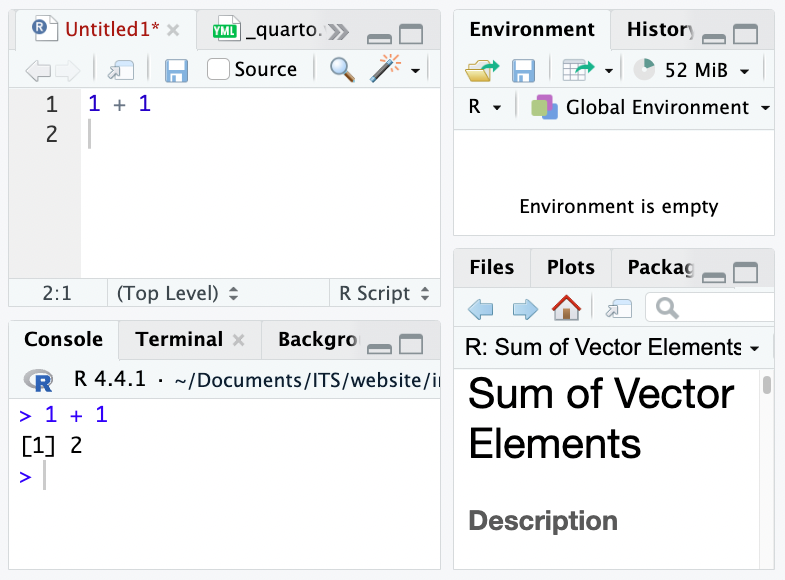
Success = Blue; Failure = Red
When R code runs successfully, you will see the line appear in blue in the console. When it does not, you will see an error message in red.
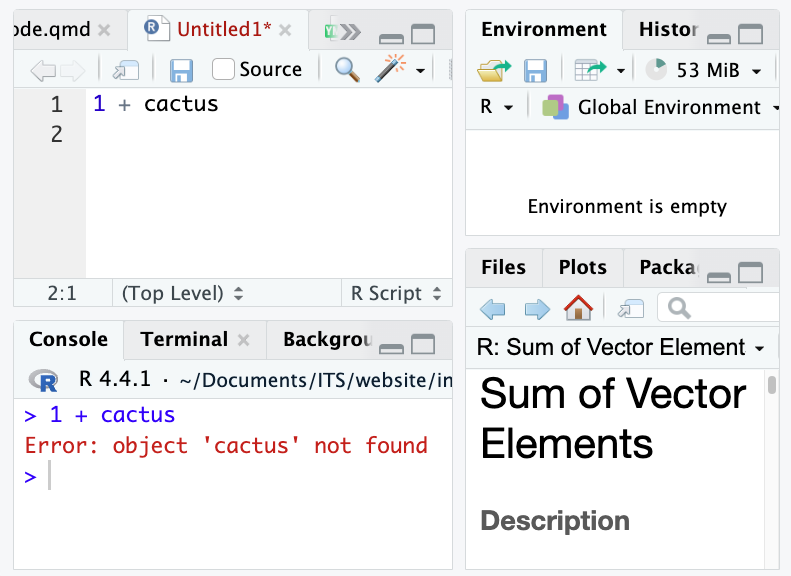
Try running the code to see what happens when something runs unsuccessfully:
R’s error messages are notoriously terrible. There is no way to sugarcoat it, they just suck. If you are really stuck, try copying and pasting the error message into Google*; it is very likely someone has had that error before and will have helpful instructions for you to solve your problem. Stack Exchange is a particularly useful website for this.
*ChatGPT works well for this too, but if you’re doing an assignment, make sure your professor is okay with you using it first.
Important Symbols
Comment #
A comment is basically a note to yourself. It is a very good idea to add a lot of comments to your code to remind you what each part of the code is doing. You think you will remember, but trust me, you won’t. Comments are preceded by the hash symbol #, which tells R to ignore everything on the line after it. Comments will appear green on your screen.
Assign <-
In order to create variables in R we use the <- symbol, which you can pronounce as “assign”. Anything you assign is an object. You will often hear the terms “object” and “variable” used interchangeably or smushed as “variable objects”. This is because when we’re analyzing data our objects typically are variables. Anything can be an object: a single number, a word, a list of numbers, or a whole spreadsheet of data.
Let’s correct our line of code that didn’t run by making cactus an object that equals 2.
In this interactive doc, that line will look like it is doing nothing, but it is creating and storing that variable.
On your version of R, you’ll notice that the line should show as blue in the console and now there will be a variable called cactus in the Global Environment (the upper right panel).
Now try running that line again.
When you create an object, you can name it anything you want as long as it doesn’t use spaces or start with a special character or numeral. So, you can’t name it something like 5cactus, but five_cactus would be fine.
When you assign something to an object it will create that object and show it in the Environment, but not print it to the console by default. Note that this line does not show the value 4 on the console, it only creates the object cactus_math.
If you want to then see what is stored in cactus_math, you can run just the variable name and its value will be displayed on the console.
Functions
To assign a list of numbers, you use a function, also called a command. In R, you will know if something is a function because it will have () attached. Here’s a page with more information on identifying functions and understanding the syntax of scripts.
To assign a list of numbers to the variable x, we use the function c() which combines everything inside the parentheses into a vector.
We can perform mathematical functions on any objects that are numerical. So if we want to multiply x times a number, each value inside x will be multiplied. Try this to see:
Remember, if you store
yas an object, it won’t appear in the console, so you have to explicitly run it to see the value.
Running Things in Order
The order in which you run things in R is very important. If we try to run the variable cactus without having first created it, we get an error. If you’re getting weird errors, it’s always good to just rerun all your code up to that point to see where something might have gone wrong.