Use Project Files Instead!
But actually, that’s the hard way. Here’s the easy way.
You should use project files instead of having to write out the full path to your folder. Project files are a nifty way to keep all your files together but not have to specify the full path.
Using project files means you don’t need to specify a “working directory”. In the before times, at the top of a script you would set the working directory to the full file path to the folder you want to work in. Now when you open RStudio, you just say File > New Project when starting anything new.
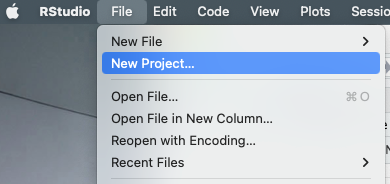
This will then open a window, like the one below, which gives you the options of starting your project in a new folder (a new directory) or a folder that already exists (an existing directory).
You’ll then see a window where you can name the folder of your new project. By clicking Browse, you can find the nested location that you want this folder to be located in. Also note that the full file path to your project is shown to the left of Browse.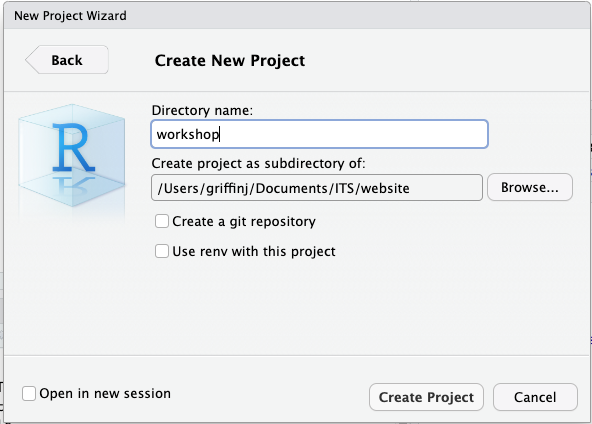
Working with Projects
When you create a new project, RStudio will open up as normal, but you’ll see in your Files list (in the lower right pane) that you have a file called [something].Rproj. (Something is whatever you named it.) You don’t need to mess with this file ever. It just contains the shortcut information for all the file paths.
Now when you want to open your project, you just double click on the .Rproj file and it will bring up everything contained within that project.
The benefits of projects are that you don’t have to set a working directory (don’t have to type out a full file path each time) and that if you move your project to another folder, you don’t need to reset anything.
Think about if before we had added a red folder in between the others. If we did, we’d have to update all our pathnames in order for our code to work. By using projects we don’t have to do that.
Please use projects.
For more on projects, you can see what RStudio has to say about them here.